|
CONFUSED ABOUT
BACKUPS?
NEED A QUESTION ANSWERED? CALL THE EXPERTS!
1-800-862-5965 |
|
Automatic Data Backup Screen Shots
|
Backup Client

|
Backup In Process

|
|
|
| Backup Results Log

|
Scheduled Backups

|
Email Backup Results

|
|
|
|
|
 |
What is an Online Backup Service?
|
| |
An Online Backup Service is an Internet-based service that allows computer users to routinely backup and recover their important data using a secure and trusted server on the Internet.
If you use your computer to create and save valuable data for business or personal reasons, you should make some type of backup of your important data to prevent a total loss in the event of any kind of system failure or human error. Simple data backup can be done by saving your data to multiple locations, copying the data from its original location to removable media, another hard drive, or another computers hard drive on the network.
To make this task easier, specialized programs known as Backup Software exist to aid users in regularly making a backup copy of their data. Since some users are not interested in managing the tasks necessary for maintaining their own backups, a new breed of backup software was created, known as Online Backup Software. Online Backup software is designed to routinely copy your important files to a private, secure location on the Internet by securely transmitting your data over your existing Internet connection.
If you have a working Internet connection on your computer, you can use CyberLynk's Online Automatic Data Backup Service to keep your important files safe from disaster on a daily basis, or you can find one of our many certified partners around the world.
|
 |
Can we try the software before we buy it?
|
| |
Sure! CyberLynk offers a 30 day money back guarantee or you can send an e-mail to our sales department at
sales@CyberLynk.net to discuss which of our packages are right for you.
|
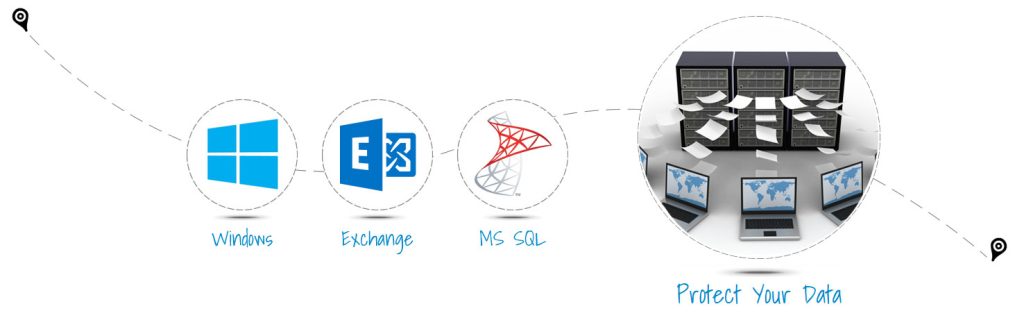
 |
Is it possible to download a demo version of the Exchange or SQL plugin for Automatic Data Backup?
|
|
|
The Exchange and SQL plugins are actually included in the client when you download the client. There is nothing more to install on the client machine besides the Automatic Data Backup client software.
|
 |
Does it make sense to use Online Backup if you have a slow Internet connection?
|
|
|
Depending on the speed of your connection and the size of your backup, your initial backup over the Internet may take several hours. Many people with large backup sizes and slower Internet connections will often run their first backup over the weekend. Once the first backup is completed, each subsequent backup is usually a small amount of data that can be backed up in just minutes over a slower dialup connection.
Our software can also resume a canceled backup, so you can start the backup during your slow times and cancel it during your busy times. The next time you start the backup, it will pick up from where it was canceled until the entire backup is complete.
|
 |
What files should you select?
|
|
|
Since your entire hard drive is likely to be much larger than the amount of storage you have purchased on the backup server, you should be selective in the files that you choose for backup. In general, you can avoid backing up any programs that you can reinstall from a purchased CD, such as Microsoft Office (Word, Excel, etc.). Why pay for storage for "stuff" you can easily re-install? Try to focus your selection on things like your "My Documents", "My Pictures" or "My Music" folders and data files of your important programs like accounting, income tax, contact management, etc. Your online backup software comes with predefined filters, which allow you to automatically select categories of files without knowing where all the files are located. See the software's Help section on Filters to learn how they can be used.
|
 |
How do you delete files from the Backup server?
|
|
|
In order to control how much data is stored on the online backup server, your online backup software allows you to view all of the data stored on the server and selectively remove files from the server. To view the data stored under your account, run your online backup software and click on the folder tab labeled "Restore". In the left windowpane, Right-Click on the Desktop icon and select "Get Volume List from Server". This will show you each computer that has been backed up to your account. Now you can navigate the folders to see what data is stored on the server. To delete files, click on the button with the Red "X" to enable the Delete Files mode. Mark any files you wish to delete by clicking your mouse in the empty box next to the file(s) you wish to delete. Click the "Delete Files Now" to issue the command to delete the selected files from the server. WARNING: Once a file is deleted from the server, it can no longer be restored.
|
 |
Should you also have a local backup in addition to online backup?
|
|
|
It's up to you. We encourage people to do both local and remote backup for absolute protection. Users that want an added level of protection will perform local backups in addition to their online backup. Local backups can allow you to backup ALL of your files, while the online backup is a great way to automatically store your critical files off-site.
|
 |
What do you do if there is trouble connecting to the server or performing a backup?
|
|
|
Contact your Service Provider's support department. If you are utilizing CyberLynk's Online Automatic Data Backup Service, call our technical support group for assistance during normal business hours (8am - 5pm CST). You can also view the technical support section of our web site for some helpful information. Visit
http://support.CyberLynk.net |
 |
Can I backup open and locked files with the online backup software?
|
|
|
In the case of many backup software programs, files and databases that are in use during the backup may not get backed up successfully because they are locked to prevent any other program from altering the data. To solve this problem, CyberLynk's Online Automatic Data Backup can be used with the optional CyberLynk SQL and Exchange Plug-ins to make sure that these open and locked database files get backed up successfully. Additionally, Online Backup now has Open File Backup protection which takes advantage of Microsoft's VSS Option ensuring open files are not skipped.
|
 |
What is a FastBIT backup?
|
|
|
The FastBIT patching process is the core technology behind our speedy backup service. The patching process involves the comparison of two different versions of the same file and extracting the differences between the files. When the differences are extracted from the two files, they are saved into a new file and compressed into what is known as a Patch. The patch file is often 85% to 99.9% smaller than the file which the patch was extracted from originally.
In order to perform a FastBIT backup, the software has to backup the files 3 times: the first backup is a full, the next backup will perform an incremental, and the third performs the first FastBIT backup.
|
 |
Why is FastBIT important?
|
|
|
If you are an end-user, the efficiency of FastBIT will dramatically reduce the time required to backup your data from any network location, include slow dialup connections.
If you are the server administrator, FastBIT will minimize your overall bandwidth utilization for a large installed base. FastBIT will also provide the most cost-effective method of storing ongoing file histories for every user. FastBIT backups can be 15 times smaller than the nearest competitor. That means CyberLynk’s Automatic Data Backup will only need 10 Gigabytes for user data that would need up to 150 Gigabytes of storage using competitive software for the same amount of user data.
|
 |
Do you have a chart for Bandwidth Requirements?
|
|
|
It's very difficult to analyze those requirements because of all the variables added by FastBIT. However, the basic formula is pretty simple:
Take the expected size, in MB's, of the data you might see in a day, divide it by the amount of seconds in the day and divide that number by 8 to obtain MB/Sec Bandwidth. This will result in the required bandwidth (MB/Sec) needed to sustain 100% load throughout the day.
Example: Let's say we have 500 users sending us an average of 600MB per month (this is about what we see across our DataCenter’s), then the formula follows:
600MB * 500Users = 300000MB (300GB) / 30days (per month) = 10000MB Per Day (10GB) / 86400seconds (1 day) = 115.74Kb/sec * 8 (to convert to MB/Sec) = .93MB/Sec or about 61% of a full T1.
Of course, this assumes that you have full saturation throughout the day, which isn't going to happen. It typically gets a bit peaky around noonish and around midnight, so to accommodate the mean, you should probably have a 30% overhead, which in the above case, would translate to just about a full T1 (1.5MB/Sec).
|
 |
What platforms does Automatic Data Backup support?
|
|
|
Automatic Data Backup includes client and server software. The client software can be installed on any Windows 98SE, Me, NT, 2000, 2003 (.NET), XP or Vista computer. The Automatic Data Backup Client software communicates to the Automatic Data Backup Server using the TCP/IP protocol.
|
 |
Can you backup other platforms with my Automatic Data Backup Client software?
|
|
|
Automatic Data Backup Client software will only run natively on Windows 98SE, Me, NT 4.0, 2000, 2003 (.NET), XP and Vista. If you want to backup computers with other operating systems, it is possible. Here's how... Since Automatic Data Backup Client supports mapped network drives and the Network Neighborhood, it can backup data from any computer that is accessible via the network. A single Automatic Data Backup Client can backup the local computer and any number of local or remote network computers using Automatic Data Backup’s powerful user interface.
|
|
|
|